Tennis TV Spoiler Mode: Hiding Scores, Timelines and Finding Full Replays
Use the documented spoiler controls, choose the right replay format and understand device limits, notifications and the competitions Tennis TV cannot stream.

What Tennis TV Spoiler Mode hides and how to enable it
Tennis TV Spoiler Mode lets Premium subscribers hide scores, timelines, or both on supported versions of the service. As checked on October 30, 2026, Tennis TV documents the feature for its website and mobile apps. The useful first step is to enable it before browsing for a match you want to watch without knowing the result.
Premium access and the documented settings
The official Spoiler Mode help page identifies it as a Premium feature. It describes an activation prompt when a new Premium subscriber first watches a live match, and says settings can be managed within Your Account on the mobile or tablet app. Use that documented route rather than assuming that a free registered account unlocks the same controls.
This guide follows the published support instructions; it is not a report of testing inside a paid account. Menu labels and app layouts can change, so use the current help page if your screen differs. There is no reason to risk the match you most want to watch while locating the controls.
Scores and timelines answer different questions. A displayed score can directly reveal the result; a visible total running time can influence what you expect as a replay reaches a close set. Hiding one while leaving the other visible may preserve less uncertainty than you intended. Choose the controls that suit the way you want to watch.
Hidden controls cannot rewrite the recorded match
The scope of the documented feature is the service's scores and timelines. Do not extend that description into a claim that Tennis TV removes every scoreboard or spoken result from the recorded broadcast itself. A video may contain information about another court, and hiding interface elements does not rewrite its commentary.
Tennis TV's live-score explanation says scores appear in the order of play and video player unless Spoiler Mode is switched on. That makes the setting relevant before you enter the player, not just after the opening point starts.
For the best chance of preserving the result, think about the route to the match as well as playback. A news headline, a tournament draw or a phone alert can reveal information before the video opens. Our ATP viewing guide helps establish the available service; within Tennis TV, set your spoiler preferences first and then choose the precise replay format you want.
Why the same setting may be missing on your TV
A television can support Tennis TV playback without supporting every feature available on its website or phone app. The official Spoiler Mode page limits the feature to the website and mobile apps. If you cannot find an equivalent switch in a television app, do not assume that you have overlooked a universal menu setting.
Streaming support is different from feature support
The supported-device guide lists computers, phones, tablets, smart televisions and streaming devices. That describes ways to watch. The more specific Spoiler Mode article describes where its score and timeline controls are available. Read both, rather than treating a broad device list as a guarantee of identical menus.
| Where you watch | What the current documentation establishes |
|---|---|
| Tennis TV website | Spoiler Mode is documented as available. |
| Mobile or tablet app | Spoiler Mode is documented, with account settings described. |
| TV or streaming-device app | Playback support does not establish Spoiler Mode support. |
| Casting from another device | Casting is supported in listed setups; identical spoiler behavior is not promised. |
For a result you particularly want to preserve, the conservative viewing choice is a platform where the feature is expressly documented. Check the controls there before opening the desired replay. Switching from the phone to a television should be treated as a change of viewing setup, not proof that every preference and control will behave identically.
Tennis TV documents casting with Chromecast or AirPlay, but that does not establish what every receiving device displays before or during playback. Test the particular combination with an already-known match if you plan to use it. Avoid discovering a difference while trying to preserve a final you have saved all day.
App and operating-system versions also matter to general compatibility. Use the latest supported app version and consult the device guide for your model. A device that can install an app is not necessarily covered by every current feature announcement, and an old instruction written for another platform can send you searching for a control that is not there.
These boundaries are useful even when playback works perfectly. They explain why a score-hiding problem and a video-loading problem should be described separately when asking for help. Support can respond more precisely when it knows whether you are using a browser, a native television app or a cast connection.
Finding a full match replay instead of highlights
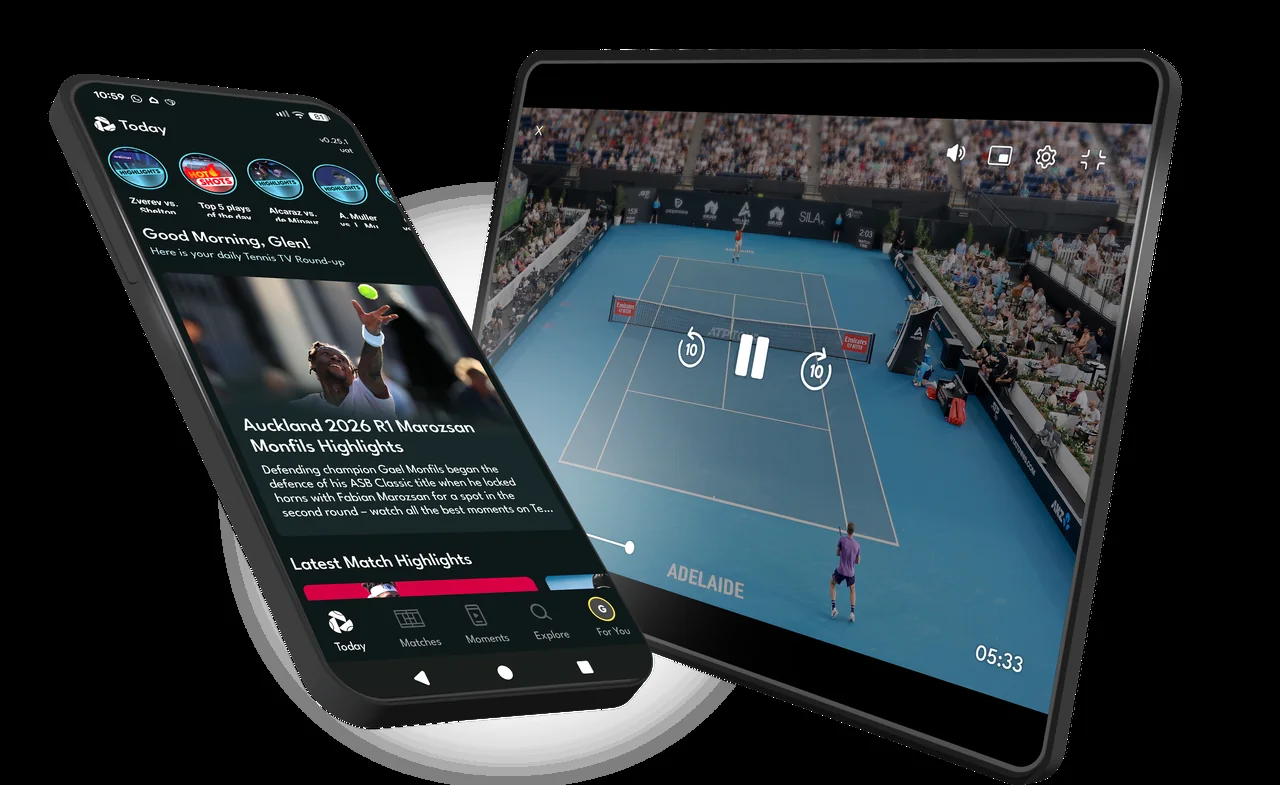
To watch a match from beginning to end, select the full match replay. A condensed replay or a highlight video is a different editorial product, even when it shows the same players and tournament. Choosing the format correctly matters as much as hiding the score.
Full, condensed and highlight videos serve different needs
Tennis TV's replay help page lists full matches, condensed replays, ten-minute match highlights, extended highlights and short highlights. The names indicate different ways to catch up. Do not assume that clicking any video about a match starts the complete contest.
A full replay is the useful choice when you want to follow changes in tactics, routine service games and how pressure accumulates between the spectacular points. A condensed version suits a shorter viewing window. Highlights are useful for learning what happened quickly, but their selection and presentation can reveal the outcome you were trying to preserve.
That distinction also changes analysis. A player can look dominant in a sequence of winners while spending much of the full match defending second serve or surviving break points. If you want to understand why a contest turned, the complete sequence provides context that a short compilation cannot preserve. A highlight is not an inaccurate product merely because it serves another purpose.
Search by player, tournament and year
The help page recommends searching by a player's name, a tournament name or a year. Add the information needed to distinguish repeat meetings: the event, edition and round can matter when two players have faced each other several times. Also confirm singles versus doubles rather than selecting a familiar name without reading the format.
The 2026 mobile-app guide describes reaching replays through the Matches tab, or through For You when you have favorited a player. It also describes Continue Watching and My List. Those routes can help you return to something already chosen, but review the surrounding recommendations if you want to avoid seeing information about later matches.
The scope of the archive claim is important: Tennis TV describes replays for matches it streamed. That is not a promise to hold every match played at every event, nor does it mean a subscriber retains unrestricted paid access after a subscription ends. Check the particular match and your access before reserving a viewing evening.
Use our tournament directory to establish which event you mean, then find its exact replay on the service. If you are catching up across several rounds, watch in match order and avoid opening later-round videos first. The safest search is a precise one that gets you to the contest you intended.
Scores can still reach you outside the video player
Spoiler Mode is one part of a delayed-viewing plan. Phone notifications, live activities, recommendations and conversations are separate routes by which a result can reach you. Check them before leaving a match to watch later, rather than waiting until you have already seen a lock-screen score.
Turn off live activities and match alerts separately
Tennis TV's notification guide describes live score updates on the lock screen and separate alerts when favorite players take the court. It explains turning these off through device settings. Do not assume that hiding a score inside the player also changes every operating-system notification preference.
On Apple devices, the documented live-activity route is the Tennis TV entry in Settings, then Live Activities. On Android, the guide directs users to Settings, Apps, Tennis TV, with notification categories including Live Match Updates. Use the settings available on your device to disable the updates you do not want. Clearing one existing score is different from preventing the next one from appearing.
Think about other score apps too. If you follow a player through several services, switching off only Tennis TV alerts leaves the others unchanged. A pre-match reminder that you arranged yourself may be more suitable than a live result alert while you are catching up, but read what your reminder service actually displays.
Draws, recommendations and other people can reveal the result
The refreshed mobile app includes draws and personalized videos as well as live streams. Those are useful features for a fan following the tour live. For a delayed viewer, a name appearing in the next round can reveal who won before the original match's replay begins. A recommendation for a later match can have the same effect without displaying a score.
This is why the browsing route matters. Find the precise match and format, then avoid unnecessary exploration of later rounds until you have watched. There is no need to interpret every thumbnail as defective design; the same service is serving viewers who want immediate news and viewers who want to preserve uncertainty.
Tell friends or a group chat that you are watching later, and pause the feeds most likely to discuss the match. Those are personal choices outside the feature's documented scope. No Tennis TV setting can promise to prevent another person from telling you the result.
Our daily ATP schedule is useful for planning before play, but do not treat a general tennis page as a guaranteed spoiler-free archive after matches finish. Decide your viewing order early, quiet the alerts you control, and take the shortest practical route to each replay.

Why a score can appear for a match Tennis TV cannot stream
A match appearing in a score service does not establish that its video is available. Tennis TV explicitly says its mobile app can show Grand Slam scores while the service lacks the rights to stream those matches. This is a coverage distinction, not evidence that a hidden replay needs to be unlocked.
Check the competition before treating a missing replay as a fault
The official coverage guide describes ATP Masters 1000, ATP 500 and ATP 250 events, as well as the ATP Finals and Next Gen ATP Finals. It separately lists excluded competitions. The service's broad ATP coverage should not be read as a claim to show every professional tennis match.
Most importantly, the Grand Slam rights explanation says Australian Open, Roland Garros, Wimbledon and US Open matches are unavailable both live and as replays. Waiting until the following morning does not change that rights boundary.
For a concrete comparison, the Paris Masters and Roland Garros are both major events in the Paris area, but they are different competitions. The former belongs to the ATP Masters 1000 series; the latter is a Grand Slam. Searching only a city or a player's name can obscure the distinction when you are looking for a particular match.
Qualifying is another important limit in the published coverage list. Do not assume that a tournament's main-draw coverage also establishes access to its qualifying matches. Likewise, a player's ATP profile does not make a Davis Cup or Laver Cup appearance an ATP Tour streaming entitlement.
Once the competition is correct, confirm that the particular match was streamed and that your subscription and location permit access. The replay help page's promise concerns matches carried by the service. It does not fill a rights gap simply because you can find the result elsewhere.
If the match belongs to an excluded event, identify the appropriate authorized broadcaster or replay provider for your country. Our guide to legal free ATP viewing explains why highlights, free accounts and full live coverage are different offers. A free score page is not a free replay, and a paid ATP subscription is not a universal tennis subscription. Establishing those boundaries saves an unproductive search through menus that cannot supply the match.
A useful troubleshooting routine without spoiling another match
First identify what has gone wrong: a missing setting, the wrong video format, an unavailable competition, or a playback problem. These require different answers. Reinstalling an app cannot add rights to a Grand Slam, and a working stream does not prove that every device supports the same spoiler controls.
Test your setup with a match whose result you already know
Before opening the replay you most want to preserve, use an old match to check the platform, selected settings and viewing route. If you plan to cast, test the receiving screen too. This is a practical precaution, not a claim that we have verified your account or that every device will behave identically.
Confirm that the account has the appropriate Premium access and that the chosen item is the full replay you intended. Then check which information is visible before playback, during navigation and after returning from another screen. That small rehearsal is more useful than assuming a menu label protects every possible route to a result.
For actual freezing, crashing or streaming trouble, the official mobile troubleshooting guide recommends current app and operating-system versions. It also identifies unstable connections, VPNs and ad blockers as possible influences. Follow the relevant steps for your setup; these are possible checks, not a diagnosis of your particular failure.
Changing networks can help distinguish a connection problem, but remember the cost of using mobile data for a long match. Make one deliberate change at a time so you can tell which step affected the problem. Avoid repeatedly opening the unwatched match as a test when a familiar replay can serve the same purpose.
Give support the details of the actual problem
Record the device model, operating system, app or browser version, match and video format, approximate time of the issue, and whether you were casting. Explain what you expected and what appeared instead. A missing timeline switch on a TV app is a different report from a mobile replay that stops loading.
As checked on October 30, the official Known Issues page lists no current known issues and directs unlisted problems to its support chatbot. That does not prove that an individual customer has no problem. Equally, a complaint from an older app release does not establish a service-wide fault this week.
If the documented checks do not resolve the issue, send support a concise account of the steps already tried. Keep private account information out of public posts. For your next viewing session, retain the setup you have checked, silence the relevant alerts and select the exact full replay. Those actions improve the plan without promising that one switch can control every source of tennis news.
About the author
ATP Schedule Editorial Team
The ATP Schedule editorial team turns match times, scores, tournament information and verified tennis news into clear answers fans can use quickly.
View all articles by this author →Fan discussion
Comments
Sign in with Google to comment. Keep the discussion helpful and tennis-focused. New comments are reviewed before they appear.
Loading comments…